Gemini Notebook
Why use Gemini Notebook
Starting March 2nd, 2026, for faculty and staff, and on March 9th, 2026, for students, Google AI tool Gemini Notebook (formerly known as NotebookLM) will be available for use through your GU Gmail account. Users must opt-in to use the tool as it will not be turned on automatically.
Gemini Notebook is an AI-powered research and note-taking tool from Google that improves user interaction with complex documents. It can summarize information, answer questions, and generate ideas based on the provided sources. And now that you can access the tool via your GU account, your data (and the uploaded data) is as secure as Google Drive. Google does not access nor train on Georgetown Google Workspace apps, including Gemini.
Organize and Explore Source Material
You may create as many Notebooks as you need for projects. You may choose to group projects by research topic, article, or any other grouping. Then upload resources and materials (written text, audio files, video files, images, datasets, slides converted to PDFs). Once you have uploaded your resources or data, you can use the Chat function to query the dataset; in other words asking the model questions about your source material or giving the model instructions to perform actions. This area of Gemini Notebook behaves like a regular large language model (Gemini or ChatGPT).One of the strengths of Gemini Notebook is that it references the sources within the dataset you provided to it; in other word, it cites its sources. You can always go back and see how the tool draws its responses. These notebooks can also be shared with collaborators, students, and others according to how you want them to interact with the data.
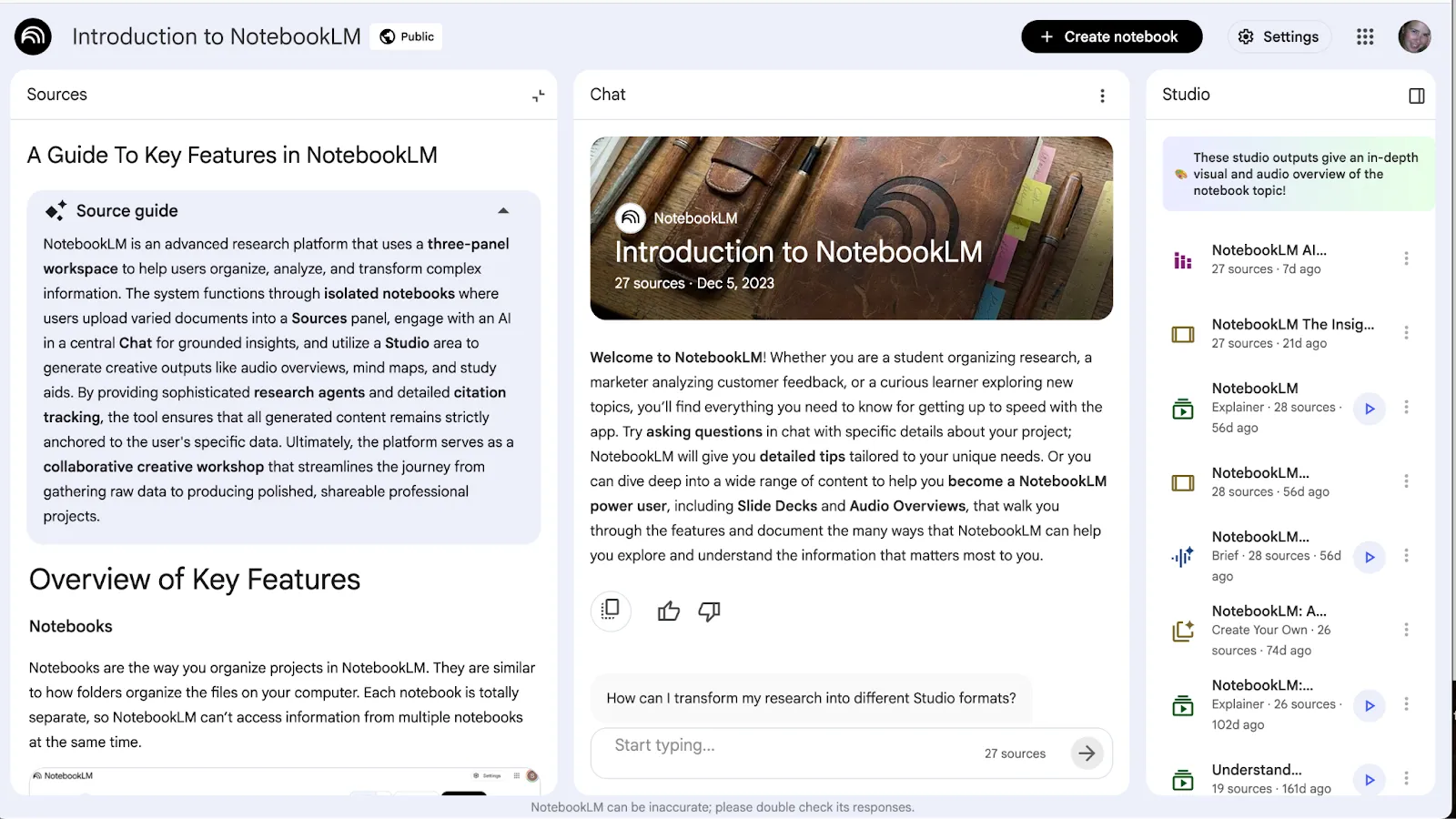
The Studio panel in Gemini Notebook is located on the right side of your workspace and serves as the output area where information from your sources is transformed into new formats. See the “What Can I Do With It?” section below for examples of these features.
Research Support
Gemini Notebook is especially suited to research use cases, as it can act as a folder that integrates all your resources, but you can also interact with those resources one by one. If you have anonymized data you want to organize or interact with easily, Gemini Notebook is a great choice.
Gemini Notebook helpfully created an Introduction within the tool.
What can I do with Gemini Notebook?
Mind Map
Mind Maps in Gemini Notebook provide a visual summary of your uploaded sources, presenting main topics and related ideas as a branching diagram. They are useful for quickly grasping the big picture, exploring new concepts, identifying relationships between ideas, and organizing your thoughts. Once generated, you can interact with it by zooming, scrolling, expanding or collapsing branches, and even selecting nodes to ask specific questions about that topic in the chat.
Reports
The Reports feature has expanded from a static list to a flexible creation tool. While you can still instantly generate standard formats like FAQs, Study Guides, Timelines, and Briefing Documents, you now have the option to “Create your own” or select an AI-suggested report type based on your specific sources. This allows you to tailor the output to your specific project needs rather than relying solely on pre-set templates.
Flashcards
You can turn your source material into a study aid by generating Flashcards. You have full control over the generation process, with options to customize the number of cards (fewer, standard, or more) and the difficulty level (easy, medium, or hard). If you get stuck on a concept while reviewing, you can simply click the “Explain” button within the card for more context. These are also great for reviewing on the go using the mobile app, where you can tap to flip them.
Quiz
Similar to Flashcards, Quizzes allow you to test your knowledge of your uploaded sources. You can customize the quiz length and difficulty to suit your study needs. After taking a quiz, you can review your results, retake it, or use the “Explain” button to understand the reasoning behind specific answers.
Slide Deck
This feature transforms your text-based sources into a polished presentation. You can choose between a Detailed Deck (comprehensive text, good for reading alone) or Presenter Slides (clean visuals with key talking points). You can further customize the output by designating the length or inputting a specific prompt to guide the style and focus—for example, asking for a “bold and playful style”. Once generated, you can present in full-screen slideshow mode or download the deck as a PDF.
Infographic
Infographics synthesize complex information from your sources into a single, engaging visual summary. In the customization panel, you can select the level of detail (Concise, Standard, or Detailed) and the orientation (Square, Portrait, or Landscape). You can also use a steering prompt to guide the aesthetic, such as requesting a specific color theme. These are perfect for quickly visualizing data or relationships, and you can download the final result as a PNG file.
Notes
Within the Studio panel, you can also create and add notes to capture and organize information, identify key insights from your sources, and include your own thoughts. You can either write a new note directly or save a chat response to notes. Saved chat response notes are not editable once created. You can create up to 1,000 notes per notebook.
How faculty use Gemini Notebook
M.A. Democracy and Governance, Elton Skendaj
Professor Skendaj asks his Political Polarization students to copy a Notebook that he created with all the readings and add resources on a topic assigned to them to their own collection. Throughout the semester, students build their collection and interact with it in various ways to enhance their understanding of the research landscape and particular research questions. By the end of the semester, they have built a dynamic notebook of references for a final paper.
MSFS Qualitative Methods for Applied Research in Latin America, Liliana Duica-Amaya
Professor Duica-Amaya used Gemini Notebook in her qualitative research methods class as a source management tool. Based on a consultation with CNDLS, she proceeded to co-create some baselines, “do’s and don’ts” for her class with the help of the students attending.
Get started
Get help
- Sign in to Georgetown Google Apps
- Contact the GU Service Center
- Learn more about how CNDLS can support you, and contact us.